DataSet Mask - Partitioned
Please refer to DataSet Mask for when referencing a DataSet definition that is not partitioned.
The remainder of the page below describes the DataSet mask when referencing a partitioned DataSet.
When a DataSet mask is configured to use a DataSet definition that is partitioned, the DataSet mask will include a Partitioned Access panel.
It may be easiest to explain by example. The first step in creating a DataSet mask is to ensure that a DataSet definition already exists. For this example, assume that the following DataSet definition has already been created:

As shown, the DataSet definition defines a partition on the CSV column "PostalCode".
Therefore, when a DataSet mask is created that specifies this partitioned DataSet definition, the mask shall appear with a Partitioned Access panel, with the CSV partition column pre-populated. In this example the CSV partition column "PostalCode" has been populated into the Partitioned Access panel:
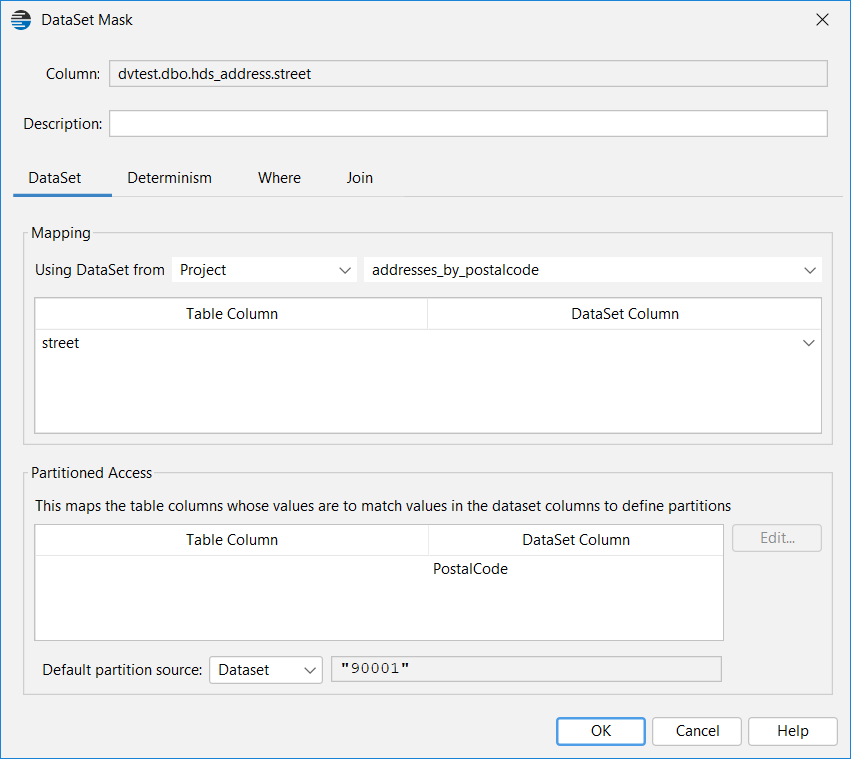
As usual for any DataSet mask, the user assigns which CSV column will be assigned to the database colum ("street" in this example). The CSV column shall be "Street".
For a partitioned DataSet, the user also needs to assign which database column shall match with the CSV partition column ("PostalCode"). The database column shall be "ZIP".

Therefore, the above DataSet mask shall select only those CSV rows whose CSV "PostalCode" value matches with those in the "zip" column on the database.
Default partition source
The mask's Default partition field (shown blank above) is an opportunity to override the Default partition defined in the DataSet definition (shown as 90001 above).
The Default partition that is actually used by the mask is selected in the Default partition source combo box, shown below.
DataSet - The Default partition defined in the DataSet definition shall be used
Mask - The Default partition defined in the DataSet mask shall be used
Disabled - No default partition. A masked value of NULL shall be returned.

Shown below is the masking result of using the CSV file defined by the DataSet definition "addresses_by_postalcode" partitioned on the CSV file column "PostalCode".
The CSV file has 5 canditate rows for each of ZIP codes 90001, 90002 and 90003.
The database table "hds_address" has its "zip" column matched to the CSV "PotalCode" column as a partition.
The shows that the first two rows in the database table have "zip" of 90001, and their masked/replacement values were taken only from those CSV rows with matching "PostalCode" code of 90001 ("1510 E 111th St" and "1740 E Gage Ave").
Similarly, rows 3 and 4 have "zip" of 90002 and so only those CSV rows with matching "PostalCode" code of 90002 were selected ("10220 Compton Ave" and "10950 S Central Ave").
Only row 5 had a "zip" of 90003 and so only a CSV row with matching "PostalCode" code of 90003 was selected ("12605 S Broadway").
Note that row 6 had a "zip" of 99999 in the database column which is unknown in the CSV file (only contains 90001, 90002 and 90003). However, the Default partition was defined as 90001 and so a row from the 90001 partition in the CSV file was selected instead ("7200 S Alameda St").

Multi-Column Partitioning and Joins
The DataSet partitioning feature supports multi-column partitioning.
It is quite simple, just add the additional partition columns to the DataSet definition and DataSet mask following the processes described above.
Rows are matched when the value of every database partition column matches with every CSV partition column.
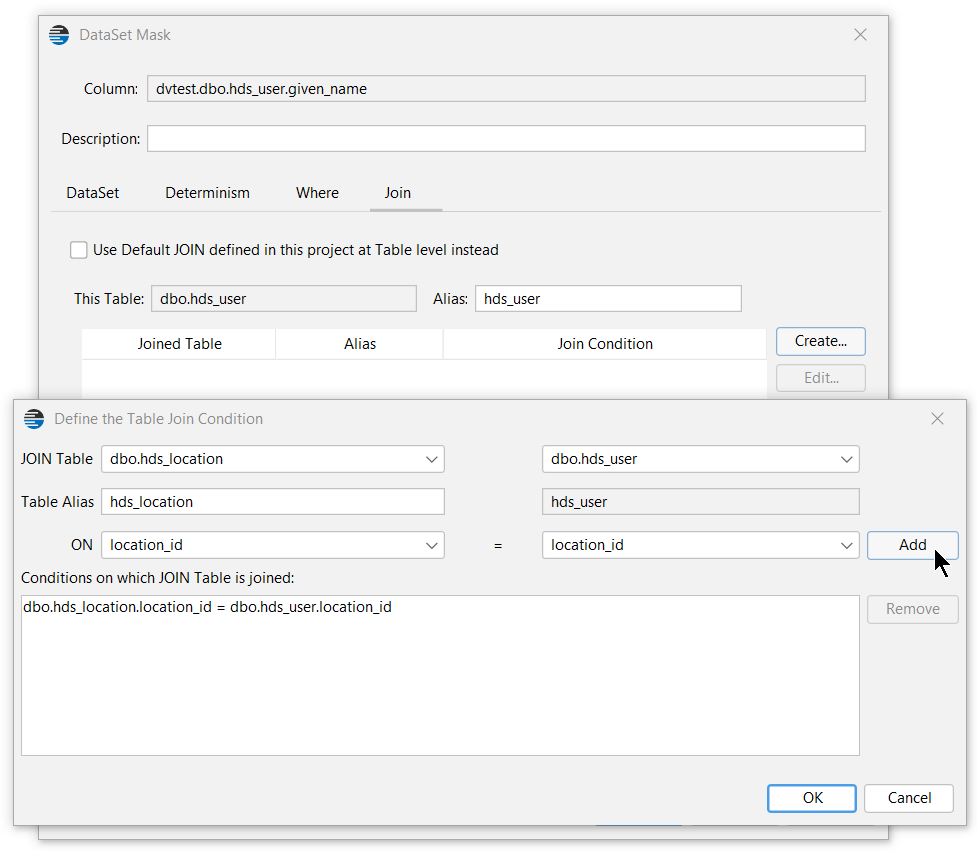
Partition values in the database table can also be in a different table to the masked table. Simply define a Join in the DataSet mask and then select the joined table from DataSet mask's partition mapping definition.
Following is an example to illustrate multi-column partitioning with a join to one of the partitions.
Example: Consider the requirement to mask person given names with names of the same language and gender as the original names.
The original database tables are shown below in the left column. In the right column is the CSV data that has been added to the project as a DataSet definition "world_names".

First, we create the DataSet definition "world_names" with partitions on the CSV columns "Language" and "Gender":

Next, we define the DataSet mask that uses the DataSet definition.
After selecting the DataSet definition "world_names" from the combo box, the Partitioned Access panel is populated with the CSV partition column names (Language, Gender):

In this example, the Language value will be in a different table to the one being masked, so we will need to create a Join to it. This is done in the mask's Join option tab:
Now, select the DataSet column (GivenName) that is to be used to mask the database column (given_name), and map the database columns that contain the partition values to the DataSet (CSV) partition columns:
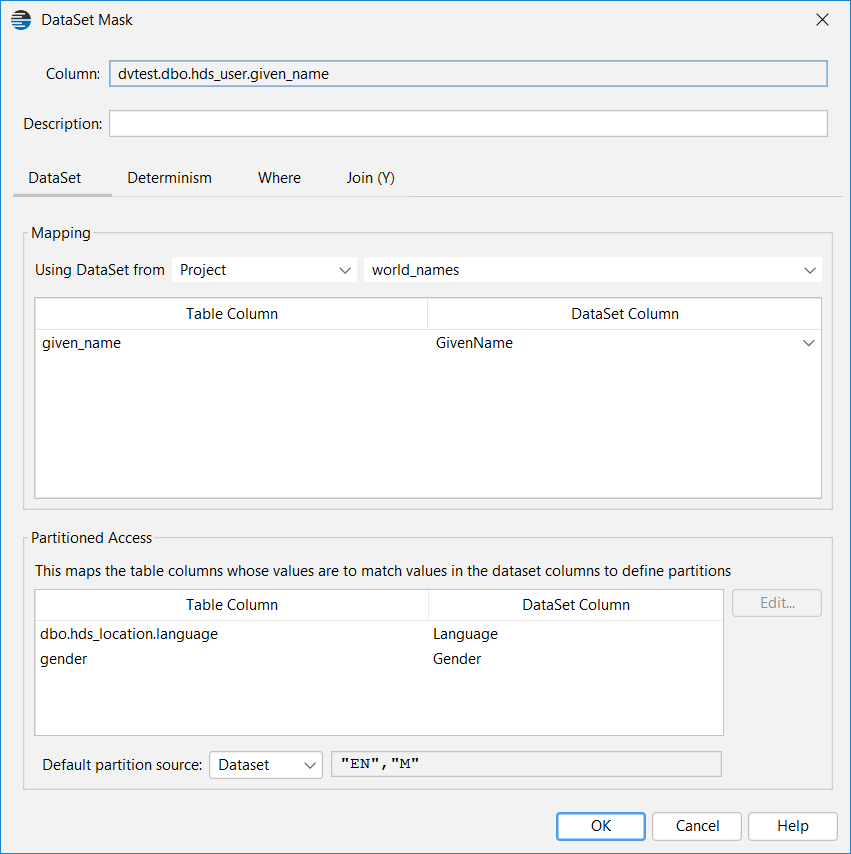
The masking configuration has been completed.
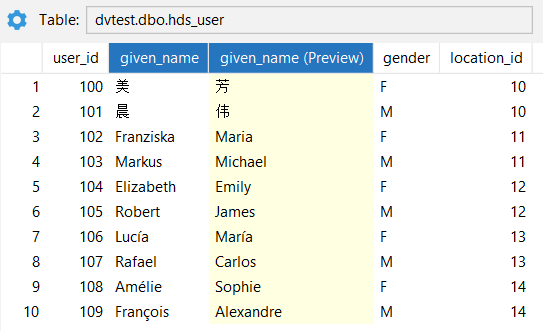
After running the masking project, each original name is replaced with a name matching the original name's language and gender, as shown in the result below:
Limitiations
* When non-deterministic mode is used with a partitioned DataSet then Random order will always be used, There are no other non-deterministic options available when using a partitioned DataSet. This is why the Non-Deterministic options panel is not shown for a non-deterministic DataSet mask when using a partitioned DataSet.
* Partitioned DataSets cannot be used from a Sequence, Splitter or XML mask. However, these masks can use non-partitioned DataSets.
* A DataSet Mask Component cannot use a partitioned DataSet. However, a partitioned DataSet can be defined as a DataSet Component.