Install The Oracle JDBC Driver
This step is required only if you intend to connect to Oracle databases. If not then you can skip this step.
Due to Oracle licensing terms the Oracle driver can not be delivered pre-installed with the DataVeil software as some other database drivers are.
Fortunately, it is a relatively simple process to download and install the Oracle JDBC driver.
To install the Oracle JDBC driver, follow the steps below:
Step 1: Download the Oracle JDBC Java Archive
Visit https://www.oracle.com/ae/database/technologies/appdev/jdbc-downloads.html
Find the section for Oracle Database 26ai and from there download the file ojdbc11-full.tar.gz
You may be prompted to sign-in to Oracle and agree to terms.
Step 2: Extract the downloaded File
Extract the archive file that was downloaded in the previous step.
The two JDBC driver files shat shall be required by DataVeil are:
ojdbc11.jar
orai18n.jar (optional)
Note that orai18n.jar is not normally required for English and many other common Oracle environments. orai18n.jar is required if your Oracle database uses character sets or language data that require Oracle’s extended character set support, or if you encounter incorrect or missing character display.
Step 3: Place the JDBC Driver Files in the DataVeil GUI Driver Directory
Place a copy of the two .jar files from Step 2 above into the DataVeil folder dataveil/dataveil/modules/ext/
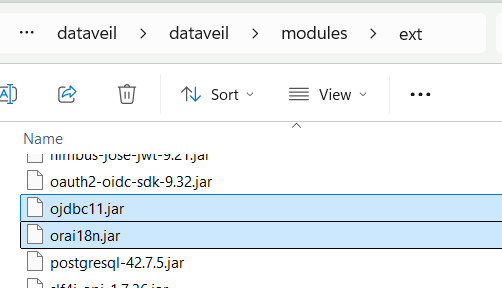
If the DataVeil GUI is currently running then it shall need to be restarted.
Step 4: Place the JDBC Driver File in the Command Line Driver Directory
Place a copy of the two .jar files from Step 2 above into the command line driver/ directory as described in Install for Command Line.
This completes the installation of the Oracle JDBC driver for DataVeil.