Environment Settings
DataVeil User Data Location
Upon first execution of DataVeil, a User Data default folder structure shall be automatically created in the user's default Documents directory. This folder structure shall be used for storing the automatically generated masking and discovery reports and any user-defined custom data definitions such as Components and Discovery regular expression patterns.
For example, on Windows for user Test, the default user data root location could be "C:\Users\Test\Documents\DataVeil\UserData".
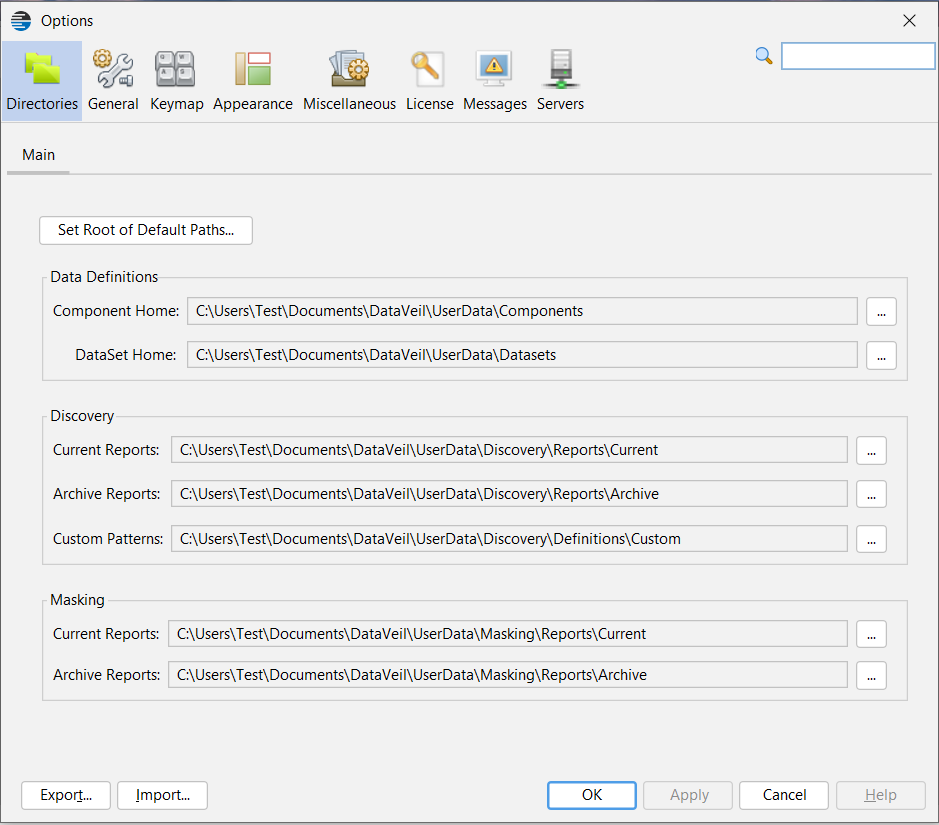
The directories settings can be viewed and changed from the main menu bar Tools->Options, Directories tab:
If you would like to use a different location, such as on a server so that other team users can share access to a common DataVeil User Data location, such as at "Z:\DataVeil\UserData" then this can be easily changed as follows:
1) First, create the proposed new root folder(s) if it doesn't already exist, such as "Z:\DataVeil\UserData" in this example.
Note: You could call it anything you want, such as "Z:\MyDataVeilData" although having a parent folder such as "Z:\DataVeil" for "\UserData" could be convenient to centralize any other DataVeil-related files and folders that could then be stored under "Z:\DataVeil", such as the DataVeil License file and perhaps other folders such as "Documentation".
2) Open the Options dialog from the main menu bar Tools->Options. The Directories panel is shown above.
3) Click on the  button shown in the panel above. This will open the panel below.
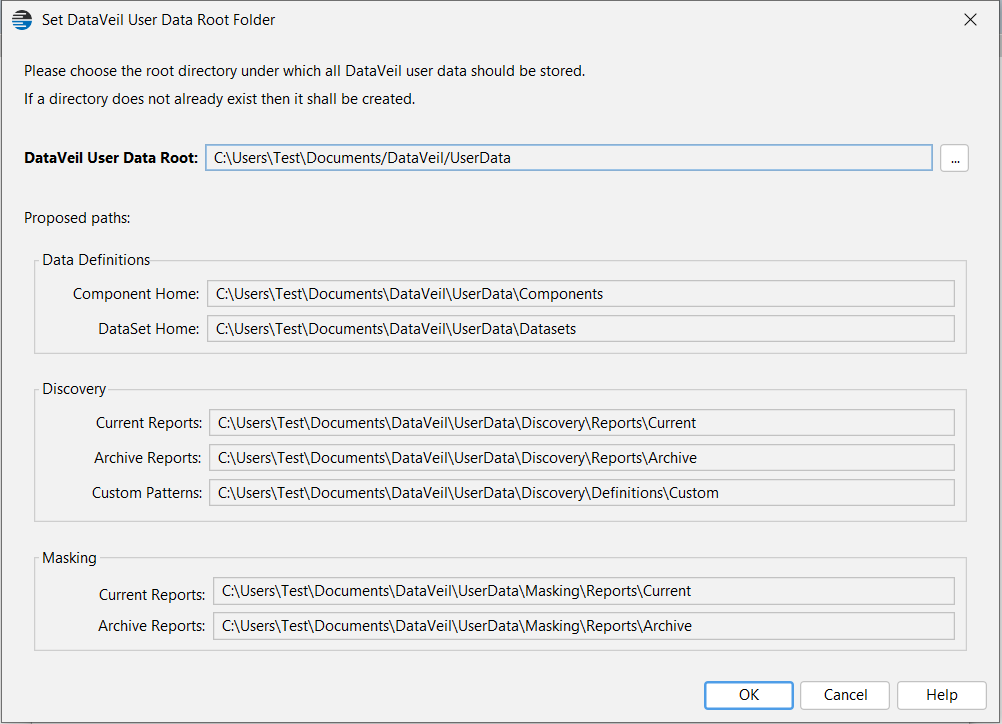
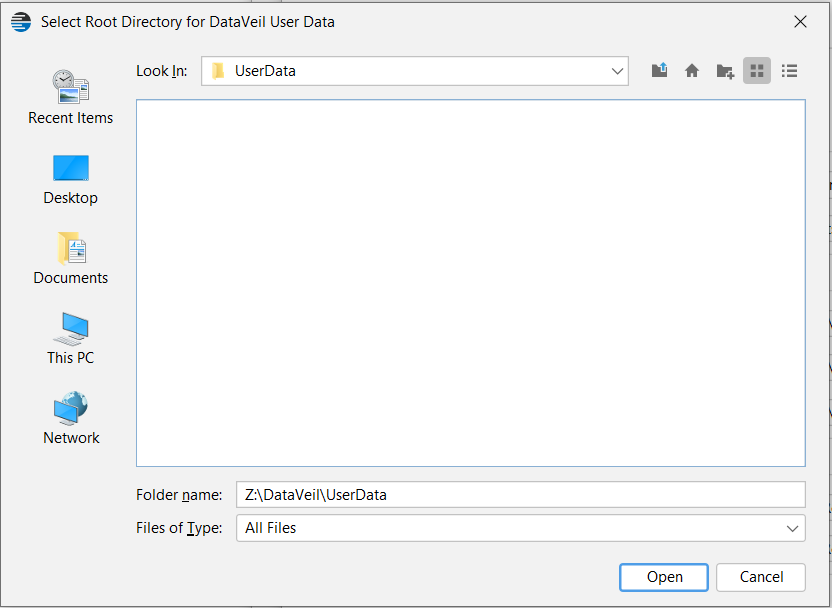
4) Click on the  button shown above and navigate to the desired new root folder for the default folder structure. In this example, this shall be "Z:\DataVeil\UserData" as shown below.
The proposed paths under the selected root are then displayed, as shown below. Click OK to accept the proposed paths.
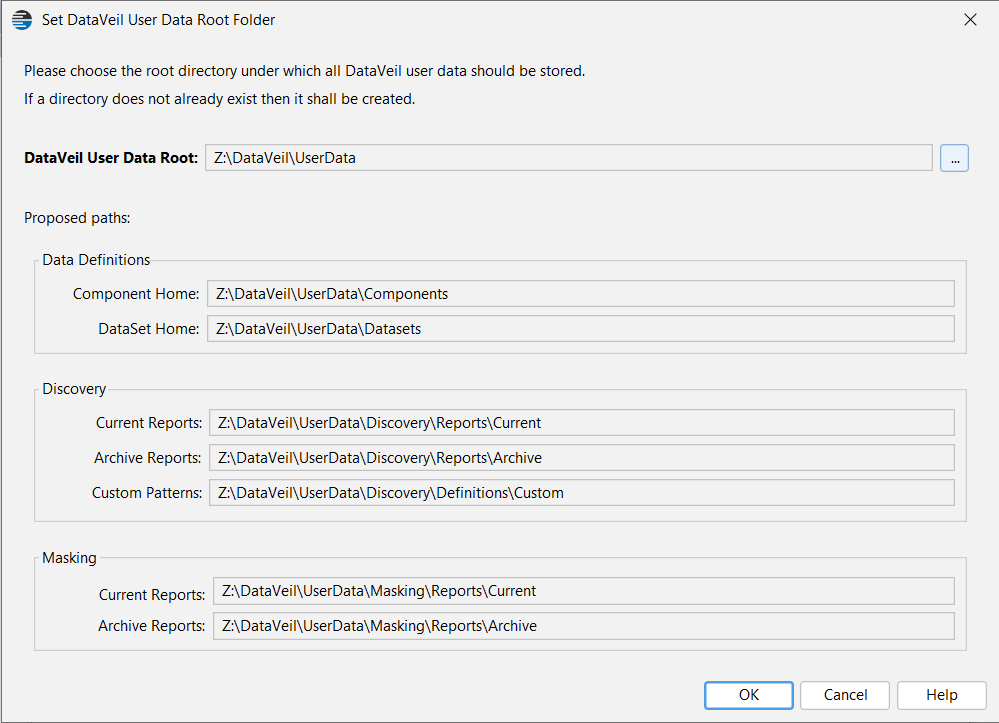
5) Click OK on the Options panel to confirm the folder structure. Any subfolders that did not exist shall now be automatically created. Any folders that already existed shall be used and their contents unchanged.
If the DataVeil software is later updated to a newer version then the updated software shall use this new folder structure too.
Component Home
This is the folder where all Components shall be saved and searched when referenced by a masking project.
DataSet Home
This folder location has been provided as a convenience setting and is recommended to keep CSV files there although there is nothing in the DataVeil software that requires it.
Discovery Current Reports
This folder is where reports from a discovery search shall be written. This folder is subject to automatic deletion of older reports. Please see Discovery Reports.
Discovery Archive Reports
This folder is where discovery reports from the Current Reports folder are moved when the 'Move to Archive' action is used. Contents in this folder are not subject to automatic deletion.
Discovery Custom Patterns
This folder is the root folder of where user-defined custom discovery patterns are maintained.
Masking Current Reports
This folder is where reports from a masking execution search shall be written. This folder is subject to automatic deletion of older reports. Please see Masking Reports.
Masking Archive Reports
This folder is where masking execution reports from the Current Reports folder are moved when the 'Move to Archive' action is used. Contents in this folder are not subject to automatic deletion.
Email Server Settings
Some features within DataVeil enable email notifications, such as upon completion of a data masking run or a discovery search.
In order for emails to be sent, the email server settings must first be configured.
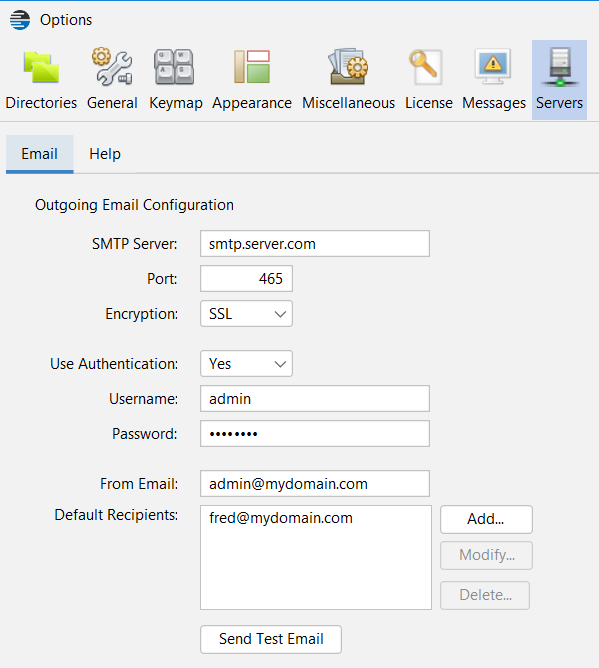
To open the email settings panel, click on the main menu bar Tools->Options and open the Servers panel, as shown below.
After entering your email server settings you can test them by clicking on the "Send Test Email" button. If DataVeil is able to connect and send successfully then a confirmation message shall be displayed and you should receive a test email at the Default Recipients address(es).
You can now configure the conditions when a masking report email is sent and when a discovery report email is sent.